Add a camera, NVR, or video address
Every onboarding route starts from Onboarding in the top navigation. The first time, choose only one of RTSP, ONVIF, and GB28181, move one channel into Asset details, and preview it.
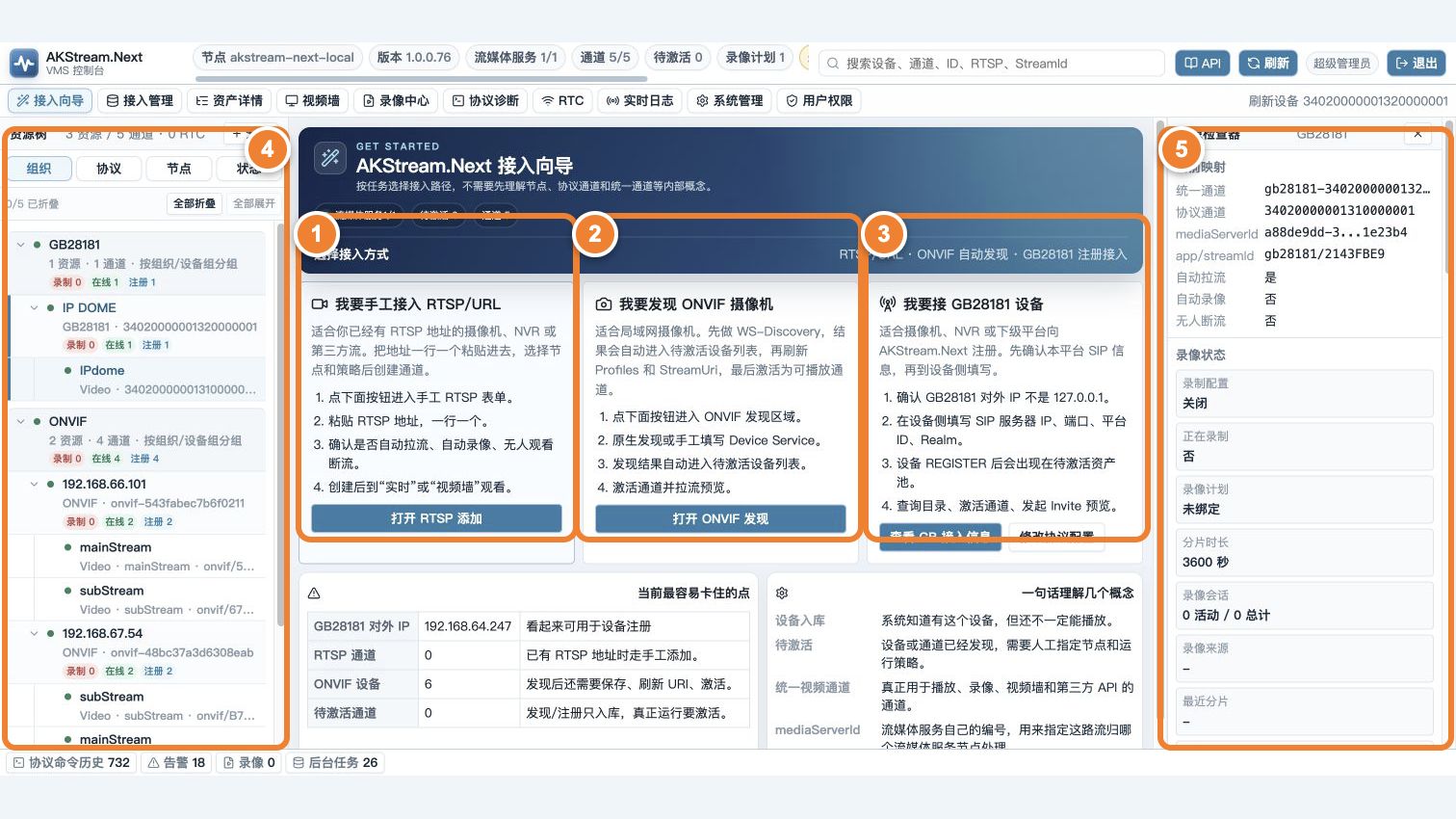
This numbered image comes from an earlier console build. It shows how the entry points relate; use the labels and locations in your installed version when operating it.
In the figure: ① add RTSP manually; ② discover an ONVIF camera; ③ wait for GB28181 registration; ④ the onboarded device and channels appear in the resource tree; ⑤ select an object and verify its real mapping and state in the inspector.
Choose one method first
| Site condition | Choose | Best goal |
|---|---|---|
A known rtsp://... address |
RTSP | Fastest video without discovery or device control |
| Camera on the same LAN, with discovery, PTZ, or image settings needed | ONVIF | Manage device capabilities and multiple Profiles |
| GB camera, NVR, or upstream/downstream platform | GB28181 | Device registration, catalog synchronization, and GB playback |
If unsure, read ONVIF, GB28181, or RTSP.
Resources pass through these states
flowchart LR
    A["Add URL / discover device / wait for registration"] --> B["Device or protocol channel appears"]
    B --> C["Generate pending channel"]
    C --> D["Choose node and policy"]
    D --> E["Activate unified video channel"]
    E --> F["Play and record under Asset details"]
A pending channel means the platform discovered a video resource but has not selected which media node will run it. After activation it becomes a formal channel that can be played, recorded, and authorized.
How the three entries work
- Manual RTSP channel: paste one address per line, select a media node, and create.
- ONVIF device: search or enter a device address, enter the ONVIF account, and select Complete onboarding and add to assets.
- GB28181 device: enter the displayed SIP information on the device, wait for registration and catalog, then activate a channel.
See RTSP, ONVIF, and GB28181 for detailed steps.
Onboarding success criteria
- The device or address has authenticated, not merely been saved.
- At least one channel appears under Asset details and is no longer pending.
- Selecting the channel starts a real stream and displays video in the browser.
- Refresh or restart does not create duplicate devices or channels.
- There are no repeated password errors, registration timeouts, or catalog failures.
If something fails
| Symptom | Next step |
|---|---|
| Device cannot be found or is offline | Device is offline or cannot be discovered |
| ONVIF account is saved but no channel appears | Read Services, Profiles, and StreamUri, then run “add to assets” |
| GB28181 registered but has no channel | Check whether Catalog returns and device IDs match |
| Channel exists but has no video | No video or playback failed |
Next step
When the channel enters Asset details, continue to Connect the first video. Read Control devices only when PTZ, image settings, or talk is needed.