Connect the first video
This page does one thing: place one real video under Asset details and play it continuously in the browser. Do not configure recording, video walls, or multiple nodes yet.
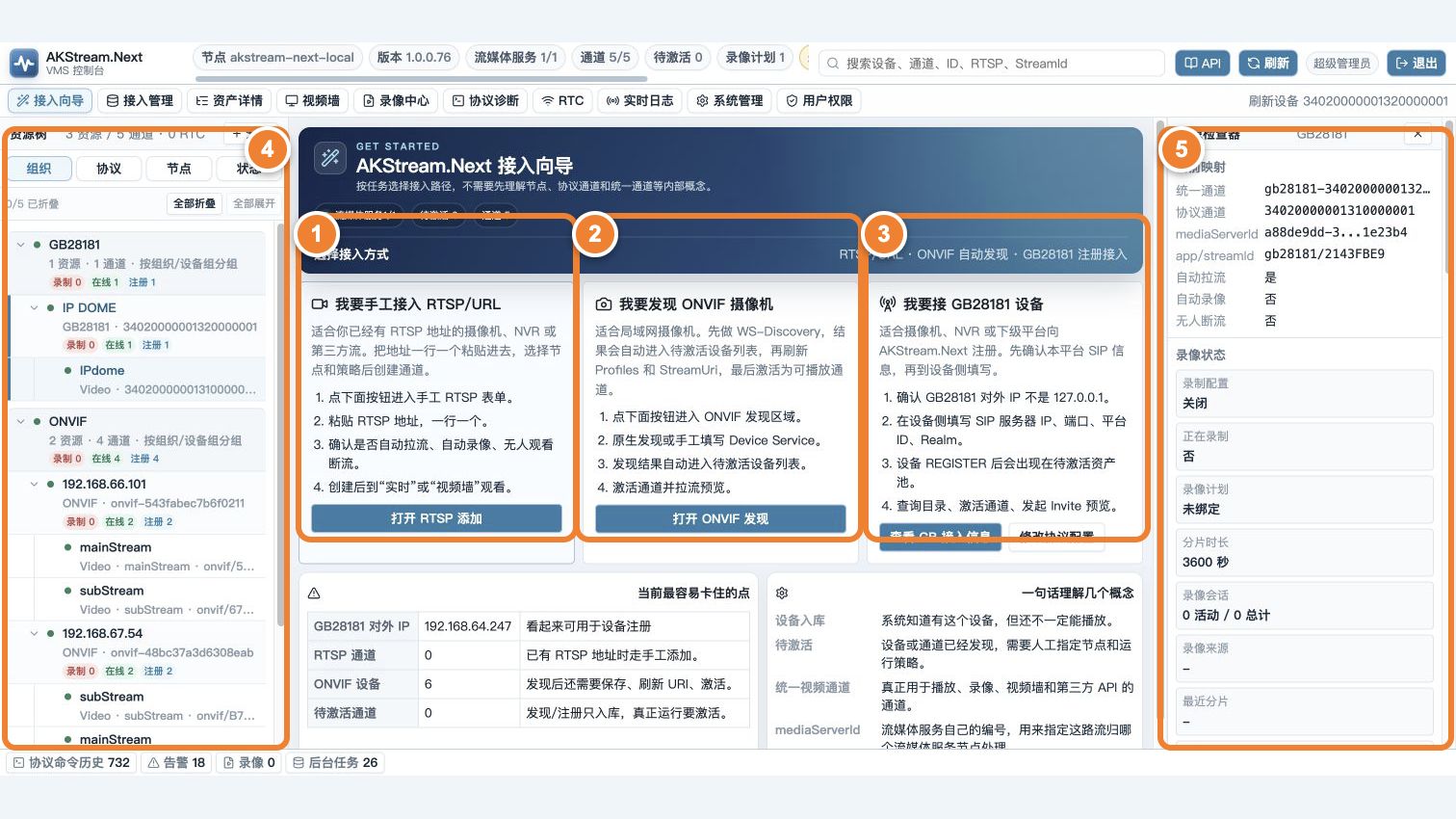
The numbered image is from an earlier console build. Follow the Onboarding and Asset details labels in your installed version.
Choose only one of ①, ②, and ③. After onboarding, find the channel in resource tree ④ and use inspector ⑤ to confirm that a media node is assigned. Do not test all three protocols at once.
Before you start
- Installation and initial setup are complete, and you can sign in.
- At least one media service node is online in the top status bar.
- Prepare one input: an RTSP URL, an ONVIF camera account, or a GB28181 device already pointing to this platform.
- The AKStream.Next server can reach the camera network.
For a first test, a known RTSP URL is usually fastest. Use ONVIF when discovery and PTZ control are required.
Choose the shortest connection method
| What you have | Choose | Where to go next |
|---|---|---|
A working rtsp://... URL |
RTSP | Onboarding → Manual RTSP channel |
| Camera IP, ONVIF username, and password on the LAN | ONVIF | Onboarding → ONVIF device |
| A GB device or downstream platform | GB28181 | Onboarding → GB28181 device |
flowchart LR
    A["Add a device or URL"] --> B["Generate a pending channel"]
    B --> C["Activate the channel"]
    C --> D["Select it under Asset details"]
    D --> E["Start live preview"]
    E --> F{"Plays for 5 minutes?"}
    F -- yes --> G["First video completed"]
    F -- no --> H["Use no-video troubleshooting"]
Step 1: add a device or address
Use RTSP
- Open Onboarding.
- Paste the address under Manual RTSP channel; use one line per address.
- Select a media service node and keep the default on-demand policy.
- Create the channel.
On success, the page reports the number created and the new RTSP channel appears in Asset details.
Use ONVIF
- Open Onboarding → ONVIF device.
- Search the LAN first; if it is not found, enter the device IP or XAddr.
- Enter a dedicated ONVIF account created on the camera.
- Select Complete onboarding and add to assets. The page reads services, Profiles, and StreamUri before creating channels.
“Account saved” is not the end. At least one channel must be added to Asset details.
Use GB28181
- Open Onboarding → GB28181 device and copy the platform SIP address, port, domain, and device ID requirements.
- Enter them on the camera, NVR, or downstream platform and save.
- Wait for registration and catalog synchronization.
- Select one channel under Pending channels and activate it.
“Device registered” only means SIP sign-in succeeded. Catalog, channel, and video still require verification.
Step 2: confirm that the channel is active
Open Asset details. On success:
- the device and channel appear in the resource tree;
- the channel is not disabled or blocked by the license limit;
- channel details show protocol source, media service node, and stream identity.
If the channel is still under Pending, select a node and runtime policy and activate it. A pending channel cannot be played or recorded.
Step 3: open live preview
- Select the channel in the resource tree.
- Start preview or start the stream.
- First check whether the page accepted the action, then check whether video appears.
- Play for at least 5 minutes, close it, and open it again.
“Started” means the platform accepted the action. Visible video proves that the device, MediaServer, playback address, and browser all work.
Success criteria
- The device and channel still exist after refresh.
- The online stream count increases, or channel details show a real online stream.
- The browser plays continuously for 5 minutes without repeated reconnects.
- Closing preview releases an on-demand stream according to policy.
If something fails
| Symptom | Next step |
|---|---|
| ONVIF search finds nothing | See Device is offline or cannot be discovered |
| Device exists but has no channel | Refresh ONVIF Profiles or synchronize the GB28181 catalog |
| Channel is still pending | Select a node and policy, then activate it |
| Start succeeds but there is no video | See No video or playback failed |
Next step
After video is stable, continue to Configure manual recording and recording schedules. Do not troubleshoot recording before the first video is stable.