Add one video source with an RTSP URL
If you already have an rtsp://... URL, you do not need to learn a full device protocol first. Prove that the URL carries video, then give it to AKStream.Next.
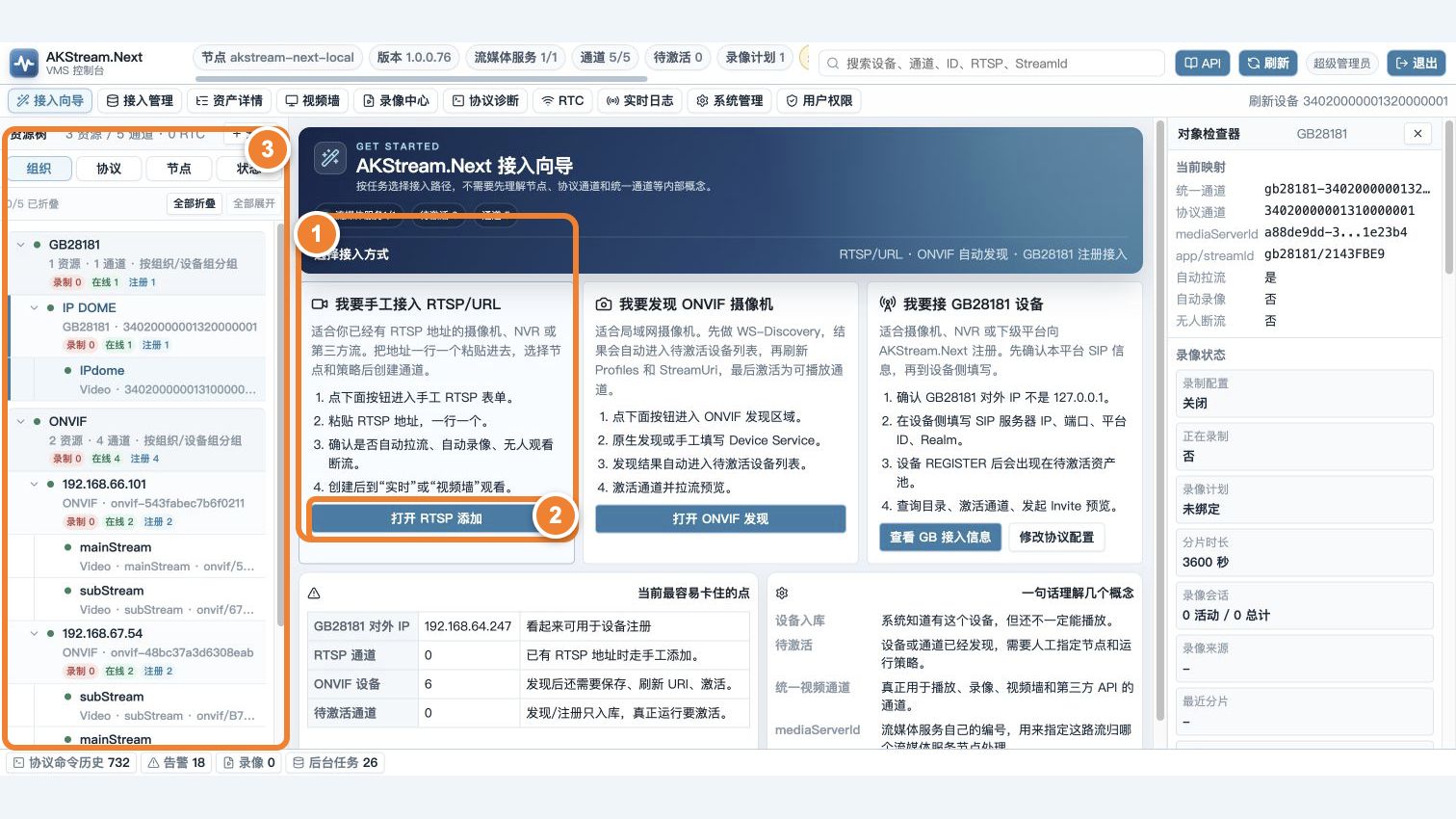
Follow the numbers: ① choose manual RTSP/URL onboarding; ② select Open RTSP add, paste the URL, and choose a media node; ③ after save and activation, the device or channel appears in the resource tree.
First decide whether RTSP is the right choice
Use RTSP directly when a camera or NVR supplies a fixed URL, an encoder exposes only a media URL, or you only need live view and recording.
If you also need channel discovery, PTZ, device events, or parameter configuration, read ONVIF, GB28181, or RTSP first. RTSP carries video but does not automatically provide device-management features.
flowchart LR
    A[Camera or upstream service] -->|RTSP| B[MediaServer pulls stream]
    B --> C[AKStream.Next channel]
    C --> D[Browser live view]
    C --> E[Recording]
Step 1: verify the URL from the server network
Do not test only from your laptop. Open the URL with VLC or ffprobe from the MediaServer network and keep it playing for several minutes.
ffprobe -rtsp_transport tcp "rtsp://username:password@device/path"
The source is basically usable when you see the video codec, resolution, and continuously advancing timestamps. Also confirm that the URL survives a device restart and that the account has enough concurrent connections. Mask credentials in screenshots and logs.
Step 2: add it in the platform
- Open device or channel management and choose Add RTSP/custom stream.
- Enter a recognizable name and the complete media URL.
- Select the MediaServer node that can actually reach the source.
- Start with on-demand pulling; use always-on pulling only for continuous recording or wall monitoring.
- Save, click Preview, and wait for the platform to establish the stream.
A successful result has all three signals: the channel is online, the corresponding stream exists on MediaServer, and the browser shows video. A “saved” message alone does not mean the source is working.
On-demand or always-on
| Choice | Best for | Cost |
|---|---|---|
| On-demand pull | Occasional viewing and large channel counts | The first viewer waits a few extra seconds |
| Always-on pull | Continuous recording, display walls, instant preview | Continuously uses device connections, bandwidth, and node capacity |
A recording schedule produces files only when the stream can be established during its active window. “Channel created” does not mean “recording is being produced.”
Troubleshoot by what you see
| Symptom | Check first |
|---|---|
| Response is 401 | Username, password, URL encoding, and account lockout |
| VLC works but the platform does not | Whether VLC and MediaServer use the same network and whether the node is correct |
| TCP works but UDP does not | RTP return ports, firewall, NAT, and packet loss |
| Stream drops after a while | Device connection limit, network jitter, timeout, and reconnect policy |
| Platform has a stream but the browser has no video | Browser codec support, HTTPS mixed content, media host, and proxy |
For the last case, continue with No video or playback failure.
Acceptance check
- Play continuously for at least 15 minutes from the real user network.
- Disconnect and restore the network; the channel identity stays unique and playback recovers.
- Close the page; an on-demand stream is released according to policy.
- If recording is required, verify that a playable file is actually created during a real schedule window.