Display wall and program scheduling
Program scheduling saves camera channels as reusable scenes and rotates them automatically on a standalone wall. The console edits and controls programs; the standalone wall handles playback, preload, audio state, and recovery.
Before you start: At least one channel must be online. The account needs
display-wall.view. Creating, editing, starting, or stopping programs also requiresdisplay-wall.manage. The browser must reach AKStream.Next and every MediaServer.
Quick start
- Open Video Wall.
- Choose a layout and click or drag channels from the left list into panes.
- Expand Program Scheduling and enter a name and purpose.
- Select Add Current Canvas to save the current layout as a scene.
- Add more scenes or generate a rotation from all online channels.
- Set scene order, dwell time, transition, and playback strategy, then save.
- Select Start and Open Wall. Playout starts at scene 1 and loops.
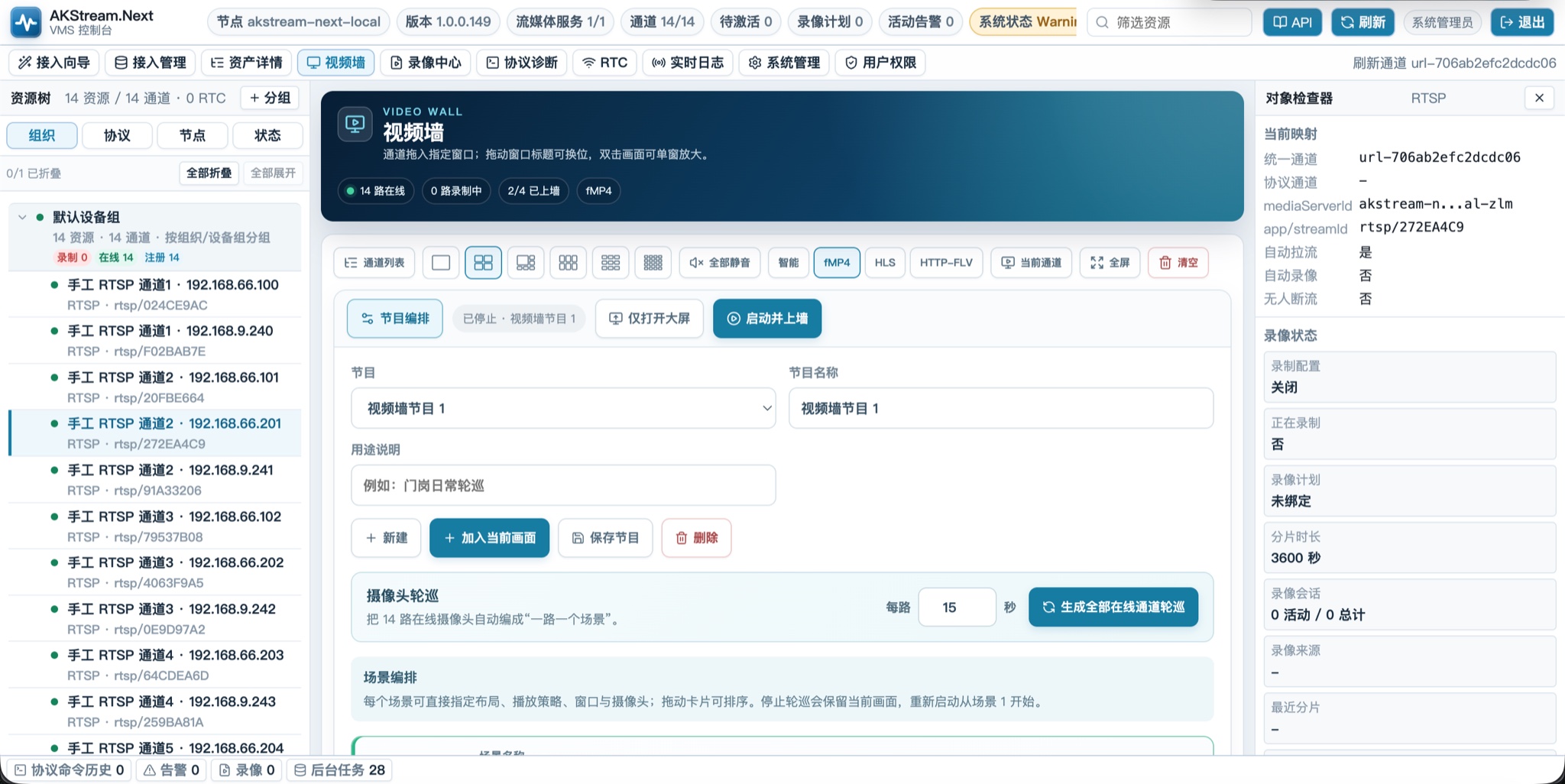
The workbench manages metadata, quick rotation, and all scenes.
Understand the structure
flowchart LR
    A[Camera channels] --> B[Current canvas]
    B --> C[Save as scene]
    C --> D[Scenes form program]
    D --> E[Standalone wall rotates]
| Object | Meaning | Key rule |
|---|---|---|
| Current canvas | Temporary panes and channels in the console | Not written to the program automatically |
| Scene | Fixed layout, channels, duration, and strategy | Must be added or replaced, then saved |
| Program | Ordered scenes | Becomes active after Start |
| Standalone wall | Simplified program player | Temporary pane changes do not edit the program |
Changing the canvas without Add Current Canvas or Replace does not update a saved scene.
Prepare the canvas
- Choose single, quad, focus plus five, six, nine, or sixteen panes.
- Click a channel to fill the next empty pane, or drag it to a specific pane.
- Drag pane titles to swap positions; double-click video to maximize or restore.
- Confirm layout and order before saving a scene.
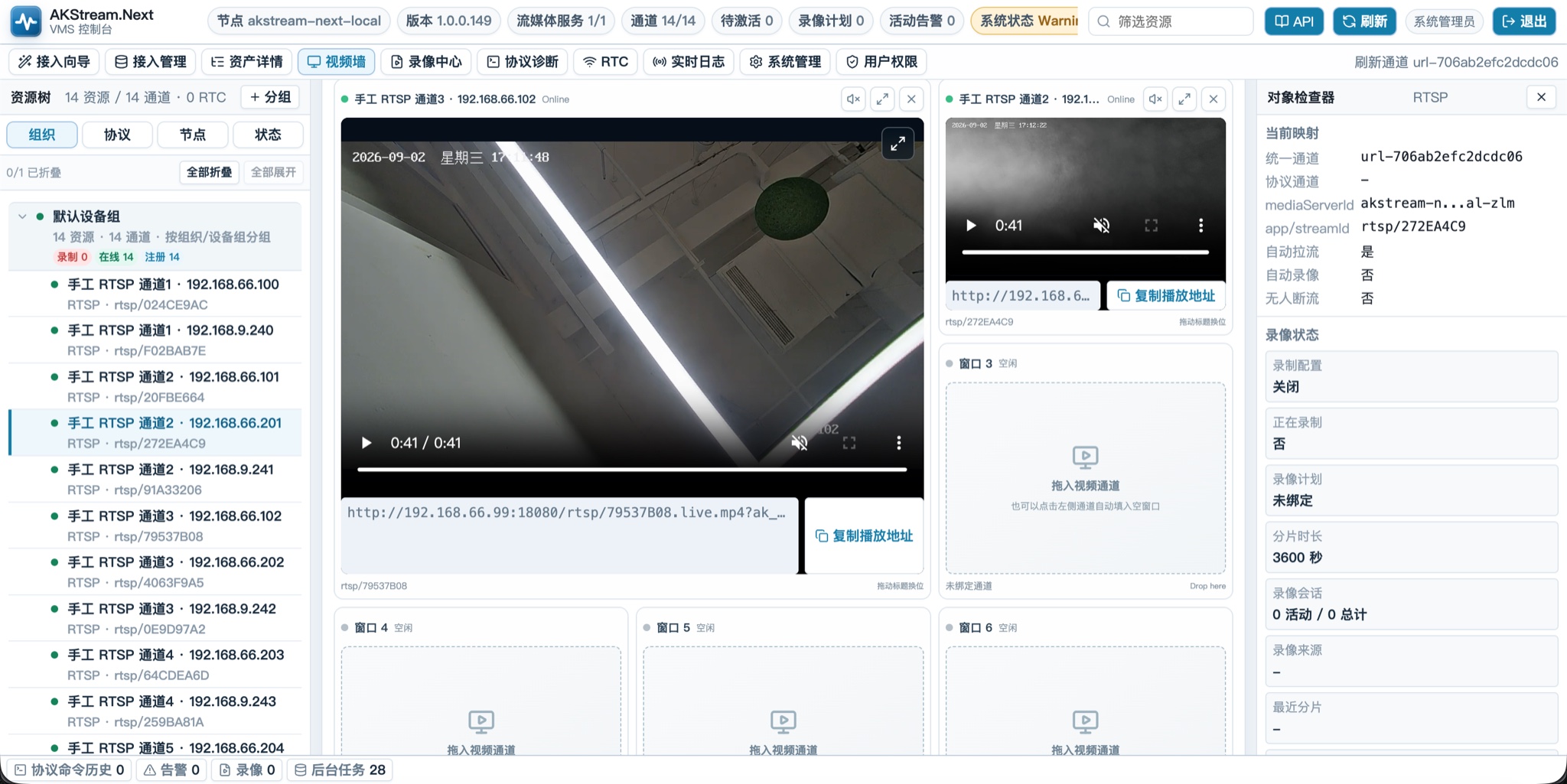
Empty panes are preserved. Protocol buttons define the current canvas and new-scene preference.
Create and edit programs
Expand Program Scheduling, select an existing program, or select New.
| Action | Result |
|---|---|
| Add Current Canvas | Add the current layout and channel order as a scene |
| Save Program | Save metadata and every scene |
| Preview | Apply the scene to this console only |
| Replace | Replace the scene with the current canvas |
| Duplicate | Copy a scene for editing |
| Drag or move | Change rotation order |
| Delete | Delete a scene or a stopped program |
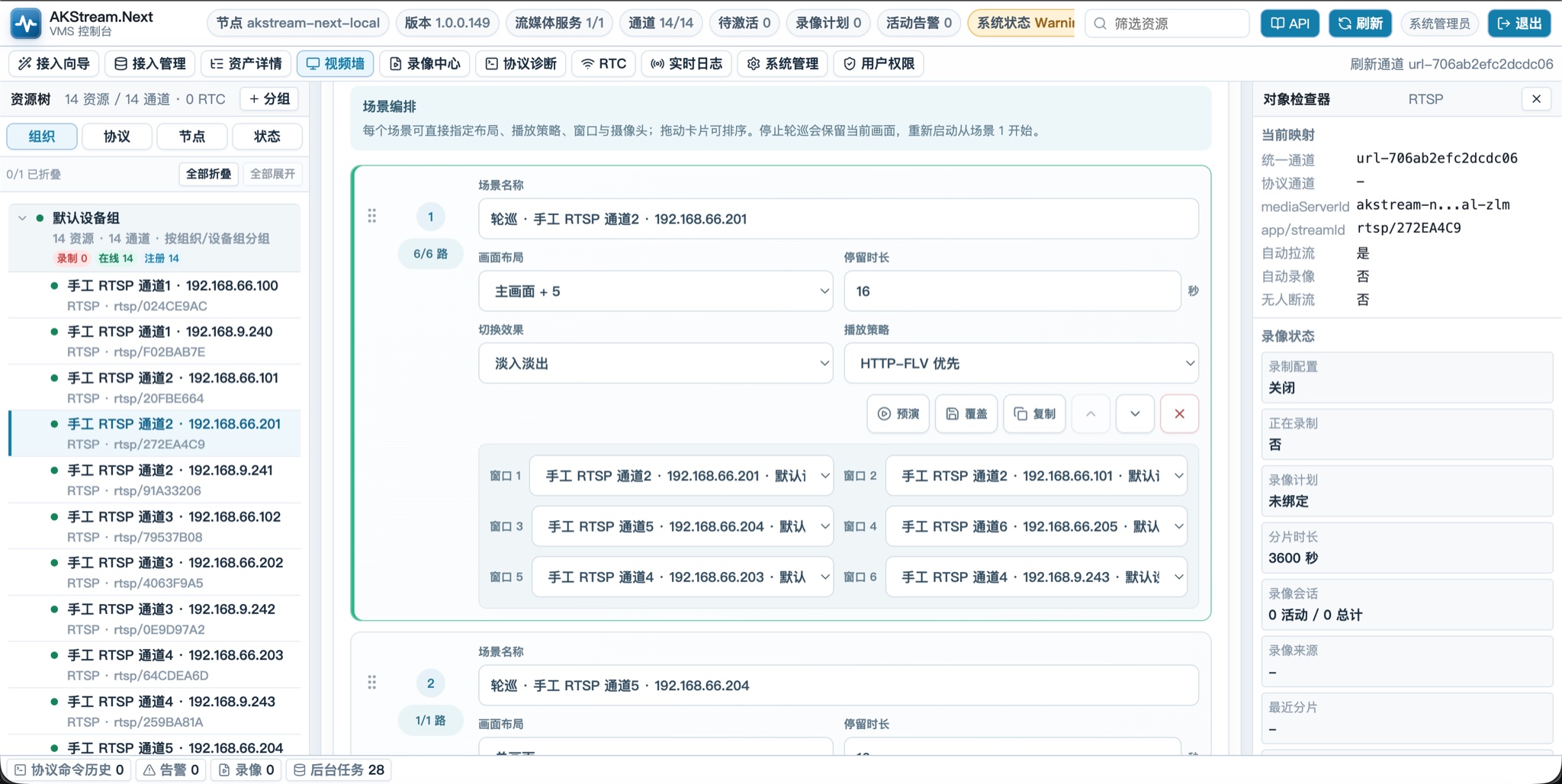
The card shows configured and total panes and allows direct channel selection.
| Field | Use |
|---|---|
| Scene name | Use a recognizable location or purpose |
| Layout | Focus layout provides one primary and five secondary panes |
| Dwell time | 5 seconds to 24 hours; rotation should normally use at least 6 seconds |
| Transition | Cut is fastest; fade is smoother |
| Playback strategy | Smart or HTTP-FLV preferred is suitable for most sites |
| Pane channel | One camera appears only once in one scene |
A program supports up to 100 scenes. Revision protection prevents another console from silently overwriting newer edits.
Generate camera rotation
- Enter seconds per channel under Camera Rotation.
- Select Generate Rotation from All Online Channels.
- Confirm replacement of the current scene list.
- Review order and adjust names, transitions, or protocols.
- Save, then start the wall.
Offline and duplicate channels are removed. One single-pane scene is created for every online channel. Generation replaces the current unsaved scene list.
Scene channel selectors explicitly show online/offline status using the same interpretation as the channel picker, including GB28181 ON and current live-stream evidence. Options and counts update when stream state changes. States such as Registered or WaitingOnline are not treated as online through substring matching.
Start, stop, and preview
| Action | Result |
|---|---|
| Start and Open Wall | Save, start at scene 1, and open the standalone window |
| Open Wall Only | Join current playout without changing server state |
| Stop Scheduling | Freeze the current scene without clearing panes |
| Start Again | Restart at scene 1 |
| Preview | Change this console canvas only |
A running program must be stopped before deletion. If the browser blocks the popup, allow popups and use Open Wall Only instead of starting repeatedly.
Operate the standalone wall
Open it from the console or visit the site with display-wall=1.
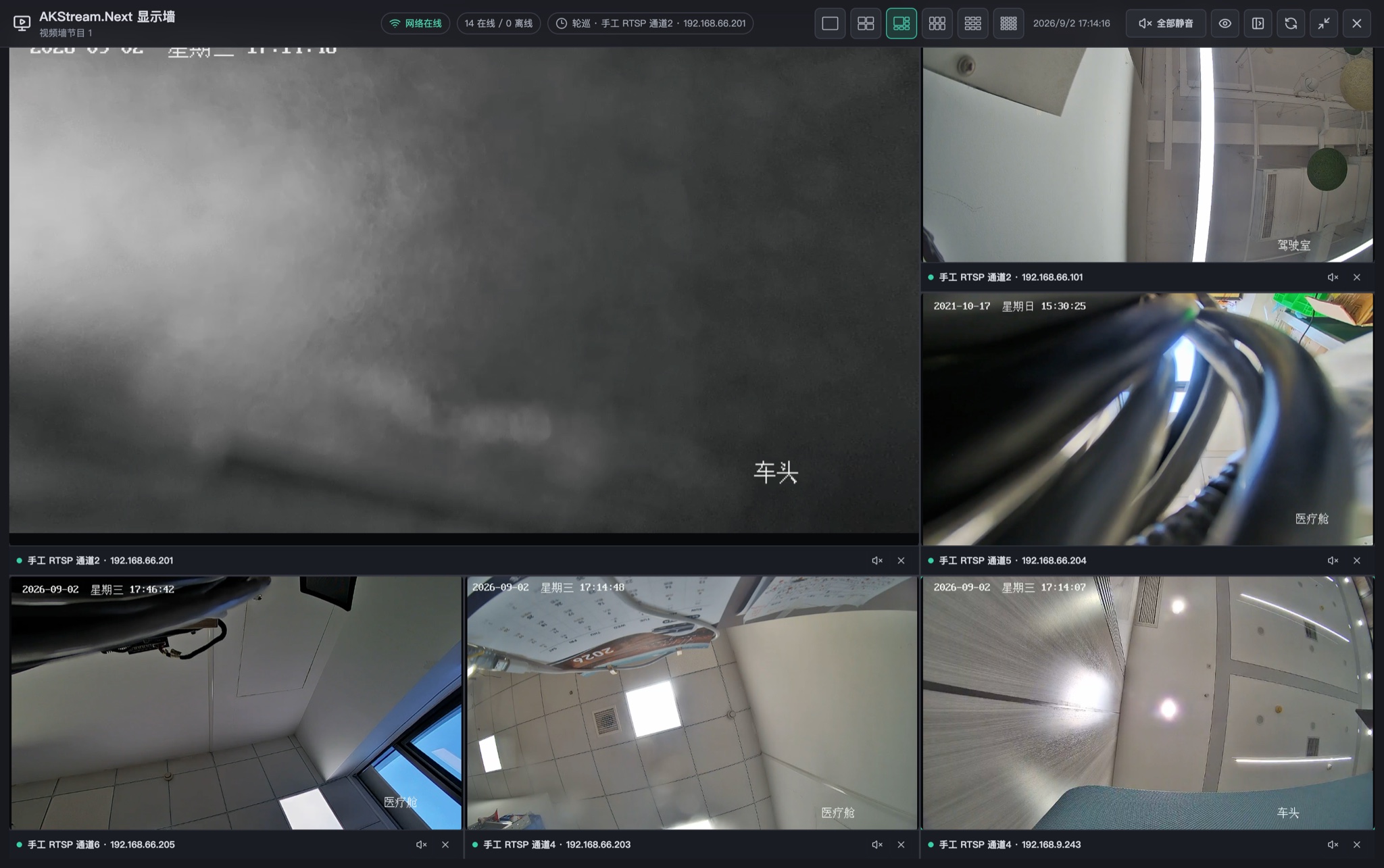
Pane titles and actions stay below video and do not cover camera OSD.
| Action | Method |
|---|---|
| Top toolbar | Move the pointer to show it; it hides after inactivity |
| Channel list | Use the sidebar button or press L |
| Temporary layout | Select a top SVG icon; saved scenes are unchanged |
| Temporary replacement | Select a pane, then select a channel |
| Find active channels | The left list shows “Playing · Pane N” |
| Mute or enable all | Use the master audio button |
| One-pane audio | Use the pane's bottom audio button |
| Native video controls | Hidden by default; use the eye button to show or hide |
| Maximize pane | Double-click video; protocol, URL, copy action, and route footer are hidden |
| Page fullscreen | Use fullscreen or press F |
| Refresh | Use refresh or press R |
Audio starts fully muted. Per-pane state is stored by pane number and survives scene rotation and player recreation. Hidden preload scenes stay muted.
Video preserves its original aspect ratio. Letterboxing may appear, but camera OSD is never stretched or cropped.
Accept sixteen panes
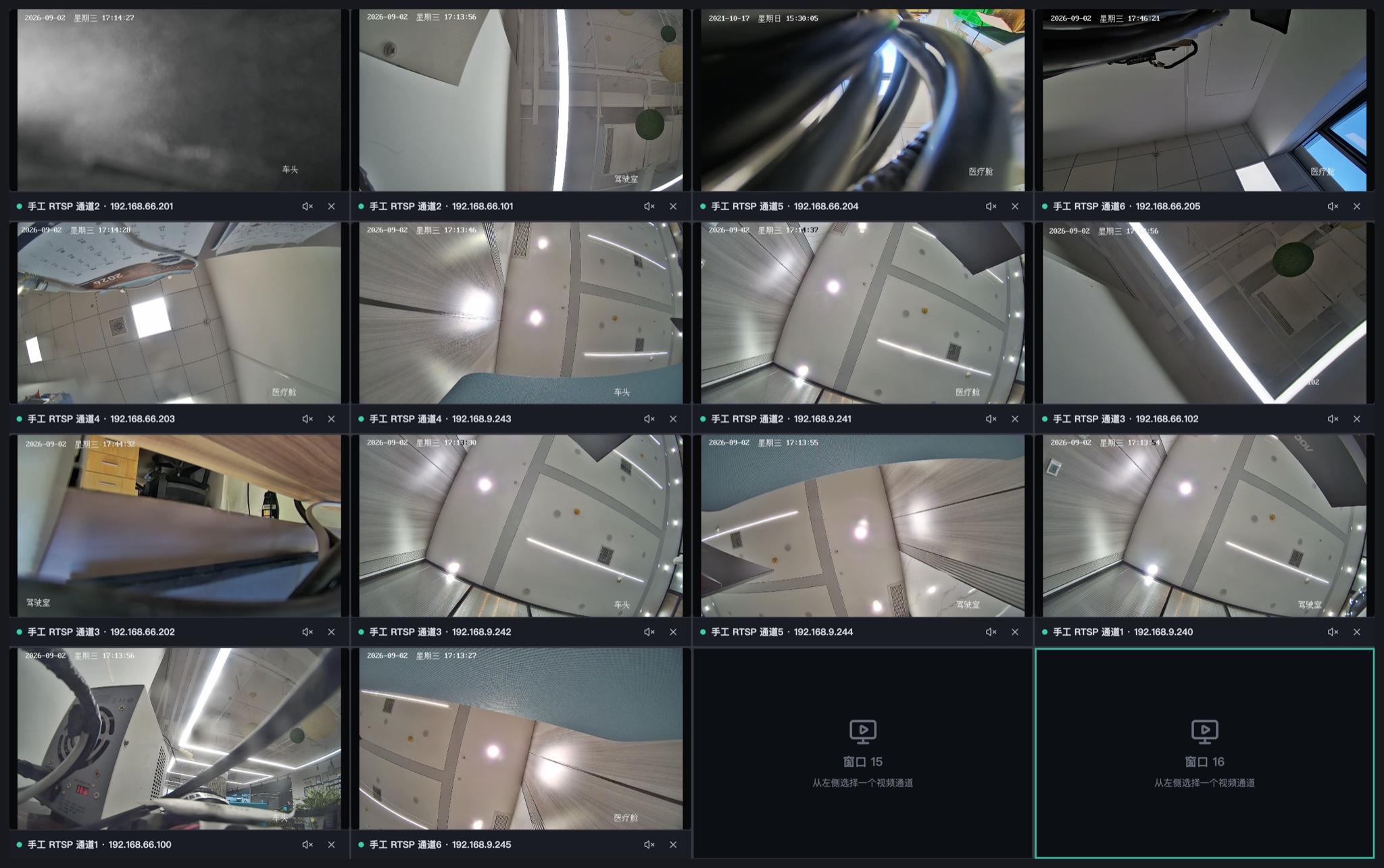
A sixteen-pane wall supports up to 16 channels; unassigned panes stay empty.
Before go-live, verify:
- Single, 4, 6, 9, and 16-pane layouts.
- At least three scenes rotating in order and on time.
- Per-pane audio surviving a scene switch.
- Offline panes staying assigned and recovering automatically.
- No overlap after sidebar collapse, fullscreen, or toolbar hiding.
- Sustainable browser CPU, memory, hardware decoding, and aggregate bitrate.
Playback and seamless switching
- Smart Protocol prefers HTTP-FLV while the connection count is safe.
- Dense active or active-plus-preload scenes use HLS to protect the per-origin connection budget.
- The next scene preloads six seconds before switching.
- No first frame after six seconds triggers a fallback immediately.
- Destroyed scenes terminate old HLS, HTTP-FLV, and fMP4 connections.
- H.265 support depends on the browser and operating system. Prefer H.264 substreams for 9 or 16 panes.
Dense-layout protection prioritizes available video. HTTP-FLV or fMP4 preferred scenes may use HLS when required for connection safety.
Troubleshooting
| Symptom | Action |
|---|---|
| Some online channels keep loading | Use Smart Protocol, verify HLS reachability, then check connection limits and H.265 |
| A switch shows black briefly | Use at least six-second dwell time and verify the next scene is online |
| No audio | Enable master or pane audio; the browser may require one interaction |
| Letterboxing appears | Expected; the wall preserves the full image instead of cropping OSD |
| Online but not marked Playing | The channel is not in the current scene |
| Video remains after Stop | Expected; Stop freezes the current scene |
| Start does not resume the frozen scene | Expected; every Start begins at scene 1 |
Permissions and unattended safety
display-wall.view: view programs and enter the wall.display-wall.manage: create, edit, delete, start, and stop programs.- Public wall accounts should normally be view-only.
- Programs store channel IDs, not permanent API tokens or MediaServer secrets.
- Disabling the user, revoking the session, removing permission, or license expiry terminates access.
- Supported browsers request a wake lock; configure operating-system power settings as well.