Connect a GB28181 device or downstream platform
GB28181 onboarding does not end at “registered.” The full route is device registration → catalog → channel activation → platform playback → device RTP → browser video.
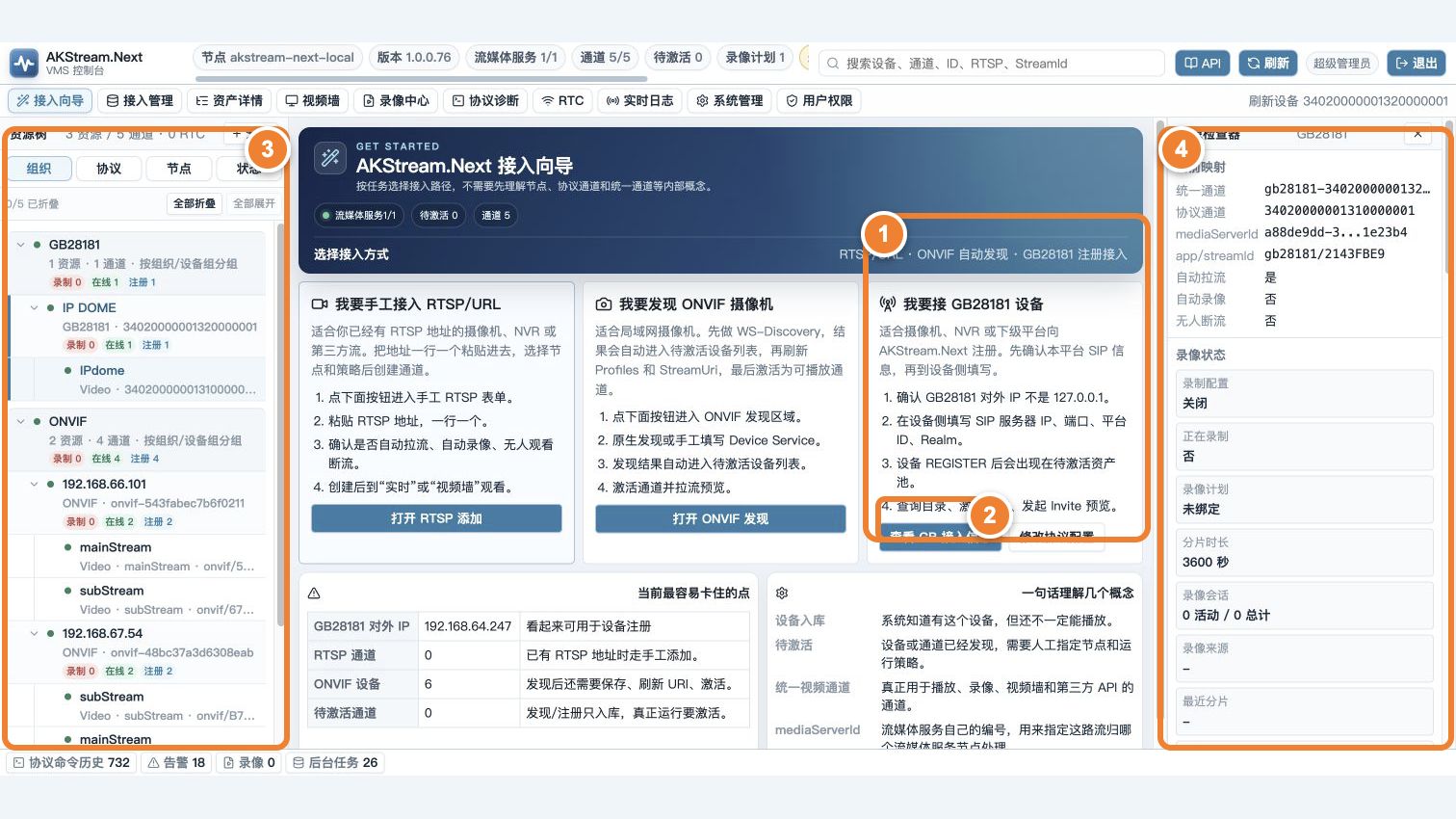
Follow the numbers: ① choose GB28181 onboarding; ② open GB access information and enter the platform SIP values on the device; ③ after registration and catalog response, channels appear in the resource tree; ④ select a channel and verify device ID, media node, and online state.
Before you start
- Plan the platform SIP IP, port, domain, and device ID.
- Confirm the device GB28181 version, transport, and video codec.
- Allow the device to reach the SIP port and allow the negotiated RTP range through the firewall.
- Across NAT, enter a public or mapped address the device can reach, never
127.0.0.1.
Complete onboarding route
flowchart LR
    A[REGISTER] --> B[Catalog response]
    B --> C[Activate unified channel]
    C --> D[INVITE playback]
    D --> E[RTP to MediaServer]
    E --> F[Browser playback]
Step 1: copy platform SIP information
Open Onboarding → GB28181 device and record:
- SIP server address and port;
- SIP domain;
- platform ID or server ID;
- device ID format requirements;
- registration authentication and password.
These values must match current effective settings under System → Protocol Services.
Step 2: enter settings on the device and register
Enter platform information on the GB page of the camera, NVR, or downstream platform. Save, return to AKStream.Next, and wait for the device in the registration list.
On success the page shows device ID, source IP, protocol version, registration time, and online state. For repeated REGISTER failures, check domain, IDs, and authentication instead of repeatedly deleting the device.
Step 3: synchronize the catalog and activate channels
- Query the catalog of the online device.
- Wait for Catalog to return devices and channels.
- Check name, channel ID, and state under Pending channels.
- Select a media node and runtime policy and activate.
- Confirm the unified video channel appears under Asset details.
An empty catalog can occur while registration is healthy. Check whether catalog reporting is enabled, channel IDs, and Catalog response logs.
Step 4: start live playback
- Select one activated channel in the asset tree.
- Open live preview; the platform sends INVITE.
- Check whether the device returns 200 OK and SDP.
- Check whether RTP reaches the selected MediaServer port.
- Finally check browser playback output.
When INVITE succeeds but RTP is missing, common causes are announced IP, RTP port, firewall, TCP/UDP mode, or SSRC.
Common failures
| Symptom | Check |
|---|---|
| Registration always fails | SIP address, port, domain, device ID, password, and device time |
| Registered but no catalog | Catalog request/response, channel IDs, and catalog-report setting |
| Channel remains pending | Media node and runtime policy selection and license capacity |
| INVITE is rejected | Channel online state, concurrency, SDP, and protocol version |
| INVITE succeeds but no video | RTP arrival, announced address, port range, transport mode, and codec |
Success criteria
- Registration and renewal remain stable instead of appearing online briefly.
- Catalog channel count matches the real device.
- Repeated synchronization does not create duplicate unified channels.
- At least one channel succeeds from INVITE to RTP to browser playback.
- Required PTZ, recorded playback, alarm, or cascading is separately verified on the real device.
After live video works, verify PTZ and talk or recording playback as needed.