Control PTZ, presets, imaging, and talkback
Open a live video first, then use device controls. An enabled button means the platform can send a command; actual support must be proven by capability discovery and the physical result.
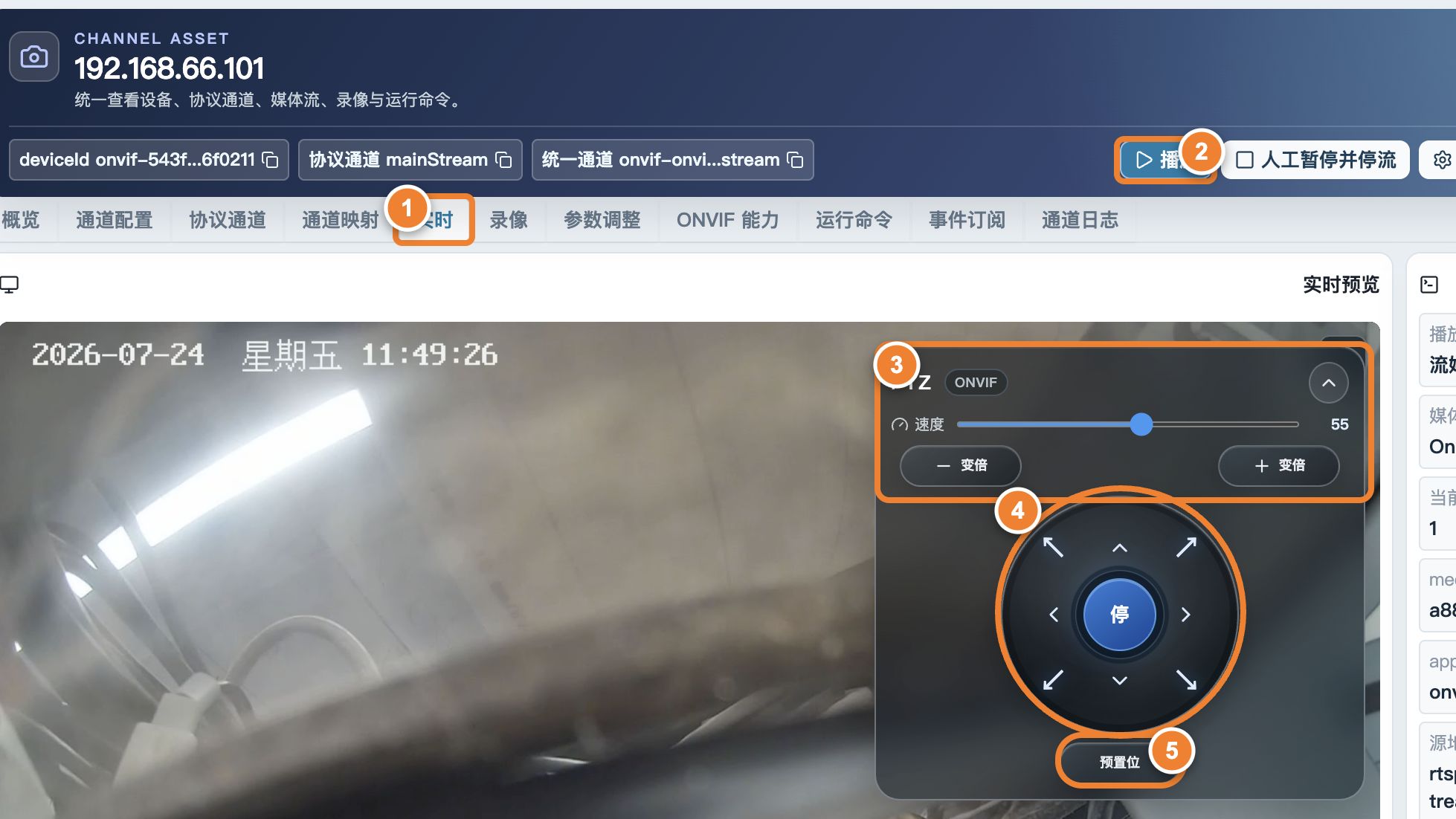
Follow the numbers: ① open the channel Live tab; ② start real video; ③ lower speed before testing zoom; ④ use a short direction press and then select the center Stop; ⑤ finally save and recall a test preset.
Test PTZ in this order
flowchart LR
    A[Open live video] --> B[Short low-speed move]
    B --> C[Release and stop]
    C --> D[Test zoom]
    D --> E[Save a test preset]
    E --> F[Recall preset and check video]
- Confirm that the channel is bound to the correct ONVIF Profile token or GB28181 channel.
- Start with low-speed, short movement and confirm that the lens stops after release.
- Then test zoom, focus, relative movement, and absolute movement.
- Create a preset named Test, move the lens away, and recall the preset.
Do not send repeated large movements when the lens does not respond. Check account permissions, channel token, speed range, coordinate space, and protocol response first. If the device keeps moving, send Stop immediately.
A GB28181 camera can have a working PTZ mechanism while omitting HasPtz and PTZType from Catalog. The page then reports that no usable capability was advertised; it does not infer support from the protocol or the camera name. After verifying the same camera through ONVIF or on site, an administrator may select Confirmed PTZ support on this device under the channel PTZ settings. The original device report remains unchanged, the confirmation survives Catalog refresh, and revoking it blocks control again. Verify the GB28181 device and channel IDs before confirming.
Change imaging settings
When the imaging page opens, the platform should first read the current values and device-supported ranges. Change only fields that are visible and explicitly supported, such as brightness, saturation, contrast, sharpness, exposure, white balance, or focus.
After saving, verify three results: the request has no error, the read-back value matches the input, and the physical picture changes as expected. For critical settings, restart the device and check again to prove that the value is persistent rather than temporary.
Unknown vendor fields, read-only fields, and empty values must not be forced to defaults. Preserve the original error when a SOAP Fault appears, then assess compatibility for that model.
Separate upstream and downstream audio before talkback
“I can hear the device” is downstream audio from the device to the browser. “I can talk to the device” is a separate upstream path and must be tested independently.
| Check | Expected result |
|---|---|
| Browser microphone permission | No denial icon in the address bar and input level changes |
| Device capability | Explicit support for audio return, broadcast, or ONVIF Backchannel |
| Audio format | Codec, sample rate, channels, and packet duration match on both sides |
| Network | Audio RTP ports are reachable and not dropped by firewall or NAT |
| Session release | Microphone and device audio channel are released when talkback ends |
For GB28181, also confirm that the target device implements the broadcast/talkback flow. A command entering the queue does not mean that the device has played audio.
Boundaries for risky operations
- Use a least-privilege device account.
- Prepare an on-site recovery method before changing network settings; a wrong address can disconnect the device immediately.
- Rate-limit and confirm bulk PTZ, restart, and network changes.
- Audit operator, device, channel, action, and final result, but never record passwords.
Acceptance check
- The page shows only control capabilities that the device really supports.
- Every action reaches a final success, failure, or timeout state.
- Imaging values read back correctly and critical settings survive a restart.
- Talkback works continuously on the real browser and network, with no leftover session after it ends.