Produce recordings that can actually be played
A successful Start recording response means only that the command was accepted. Full success requires the entire chain: schedule match, running session, file on disk, indexed file, and successful user playback.
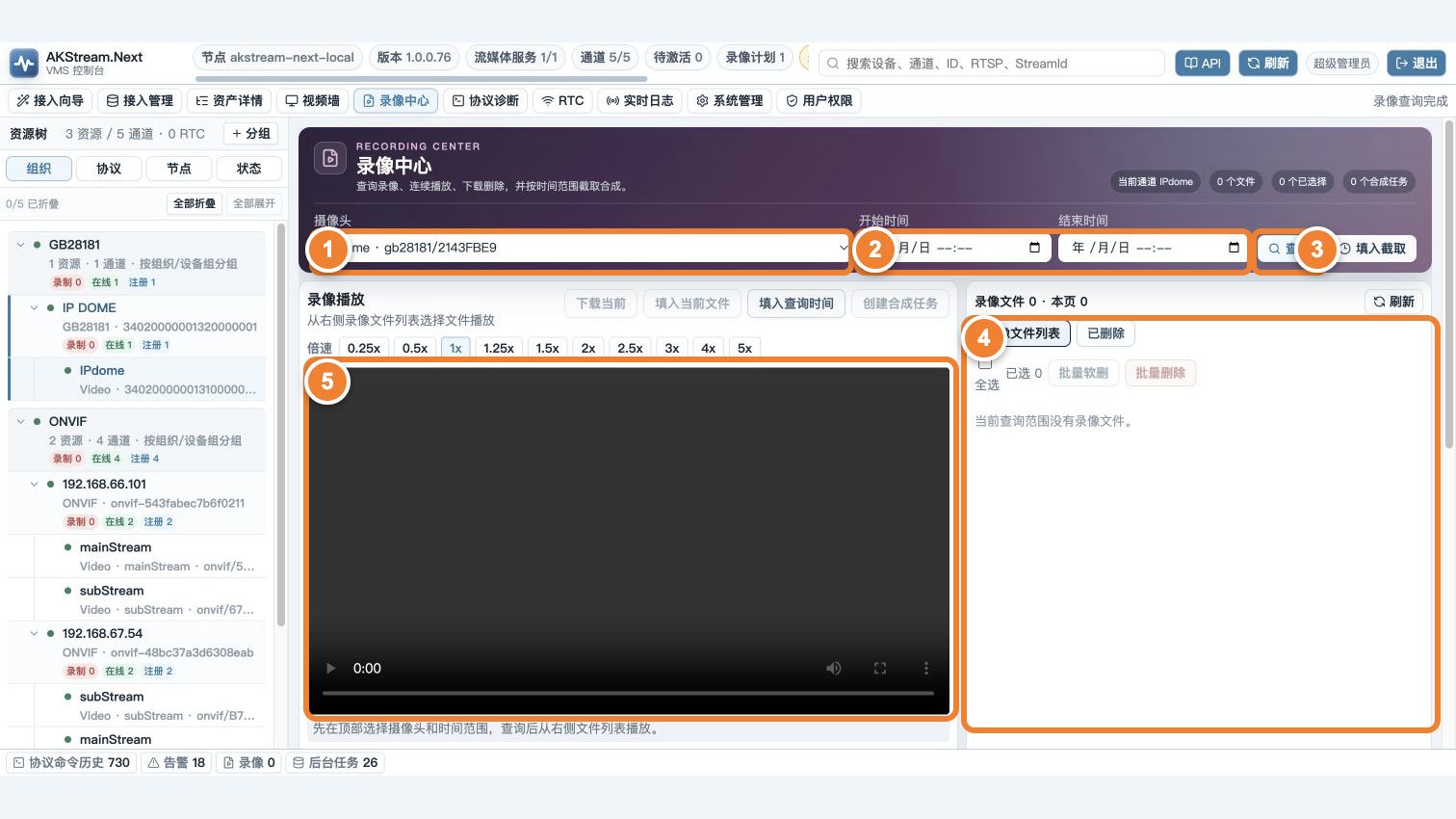
Follow the numbers: ① select a channel; ② enter start and end time; ③ run Search; ④ select a result from the file list; ⑤ verify content in the player. Recording is complete only when step ④ has a file and step ⑤ can play it.
From button to recording file
flowchart LR
    A[Manual start or schedule match] --> B[Recording session]
    B --> C[MediaServer writes file]
    C --> D[WebHook / scan creates index]
    D --> E[Recording Center search]
    E --> F[Playback or download]
Troubleshoot the first stage without evidence. Do not immediately delete and recreate the schedule.
Check 5 things before starting
- The channel has stable live video and is not an empty offline record.
- The recording root in System management is saved, bound to the real disk, and writable.
- Disk capacity, inodes, retention days, and free-space alerts are configured.
- The license allows enough concurrent recording channels.
- In a multi-node deployment, you know which MediaServer node will write the file.
Make one manual recording first
- Select an online channel and click Start recording.
- Wait for the session to become Running and cross at least one segment interval.
- Click Stop and wait for the session to complete.
- Open Recording Center and search the same channel and time range.
- Play the file, then download it and inspect duration and content.
When the concurrent limit is full, a new recording is rejected; stopping is always allowed so capacity can be released.
The “VLC playback URL” is an HTTP URL with a short-lived ak_ticket; the “server file path” is the real file on the node. They are not interchangeable. Copy a fresh ticket from an authenticated page after expiry, and never place it in screenshots, tickets, or permanent links.
Then create an automatic schedule
The base recording entitlement permits an everyday, all-day continuous schedule. Specific weekdays, partial-day windows, or multiple windows per day require advanced-recording and still obey the concurrent recording limit.
Before saving, check:
- the weekday and page time zone;
- whether an overnight window is split correctly;
- overlapping schedules for the same channel;
- whether enabling the plan evaluates the current time immediately;
- retry behavior while the device is offline;
- whether the current segment may finish at the stop boundary.
Use schedule evaluation for a specific timestamp, then wait through one real window. Correct schedule JSON alone is not completion.
Add or replace a recording disk
“Disk identity authenticated” and “recording configuration saved” are two separate steps. Missing either step means the directory has not really changed.
- In System management → Recording and disks, add the directory and finish read-only detection and identity authentication.
- Remove the old directory from the page if it must no longer be used.
- Click Save recording configuration at the bottom of the page.
- Refresh; confirm that the new directory remains, the old one is gone, and the new status is writable.
- Make a manual recording and check the server file path of the new file.
If an existing directory shows “unbound,” click Bind identity on that row, verify mount point, file system, UUID/device number, and capacity, then authenticate. Do not remove and re-add it first. Use Rebind current disk only after the physical disk was actually replaced or formatted.
The system writes a hidden disk marker in the recording root. If the path falls back to the system disk, the disk is replaced, or the marker differs, the safety gate refuses writes. This is protection and must not be bypassed directly.
Where to look when a file is missing
| Layer | Evidence you should see |
|---|---|
| Schedule | Current time matches and the schedule is enabled |
| Scheduler | Automatic task evaluated and created or retained a session |
| Session | Running/completed with no entitlement, source, or node error |
| File | A valid segment appears under an allowed root on the correct node |
| Index | The file is searchable by channel and time |
For detailed handling, read Recording succeeded but the file is missing.
Acceptance check
- Manual and scheduled recording both produce playable files.
- Overnight windows, a short device outage, and service restart behave as expected.
- Concurrent-limit and low-disk cases have clear errors while Stop remains available.
- Database index, physical files, and retention policy agree, with full traceability.